DETAILS FOLLOW IN THE SECTIONS BELOW.
You don’t need to have an account set up for you, but you do need to know the common password. For consistency, you must always use your e-mail address as the user name. If you need or have forgotten the common password, send an e-mail to Lynne.mason@ky.gov identifying who you are and requesting the password.
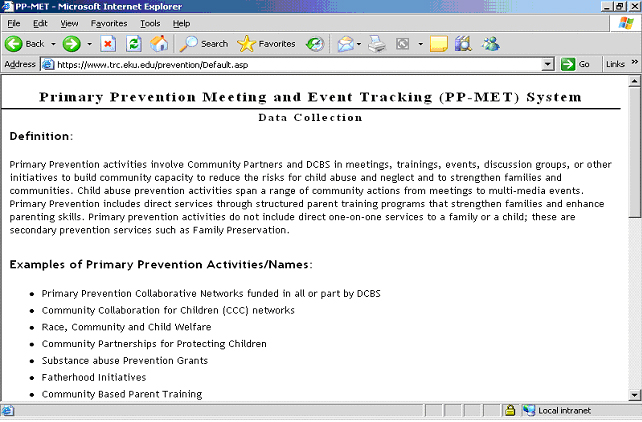
First go to https://www.training.eku.edu/prevention/Default.asp. It looks like this:
Scroll down and click “Login” under the Tools section.
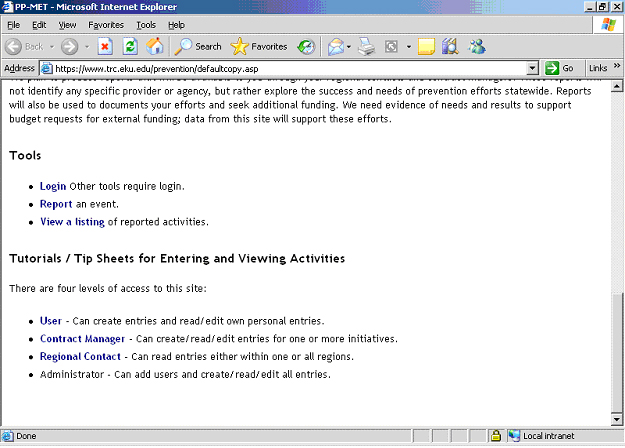
Enter your e-mail address as the user name and the common password. It is important to always spell your e-mail address correctly. Click “Submit.” You will return to the main page. It looks the same, but now you are logged in, and now you have access to more tools, namely “Report an event” and “View a listing of reported activities”.
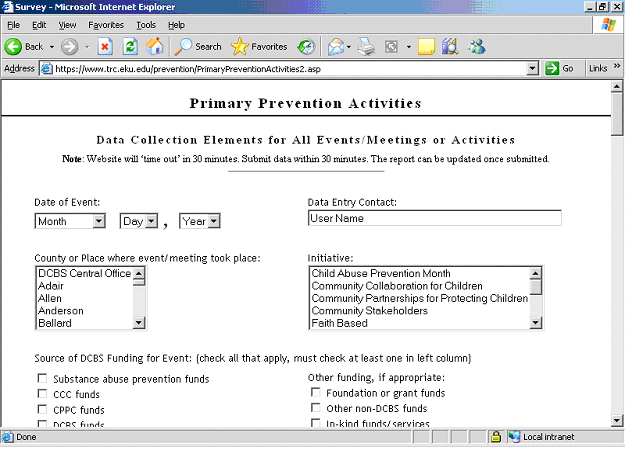
Once you have logged in and returned to the main page, click “Report an event” under the Tools section. You will be taken to a page that looks like this:
* Remember while entering data into this website to always check any and all boxes that apply.
Demographics
Enter the date the Primary Prevention activity took place. The e-mail address you entered as the user name when you logged in should appear as the Data Entry Contact. Also enter the county where the event took place. You can only select one, so choose the most appropriate county. Under “Initiative,” scroll down and click the most relevant initiative. Here you can also only choose one. Under “Source of DCBS Funding for Event,” you must check at least one box in the left column. You are not required to check any boxes under “Other funding, if appropriate.”
Type of Meeting, Event, or Activity
There are four types of activities: Meeting, Community Event, Training/Education Event, and Book/Video/Multi-Media Project. The activity you are entering could fall into more than one of these categories. You must check at least one, but you can check all types that apply.
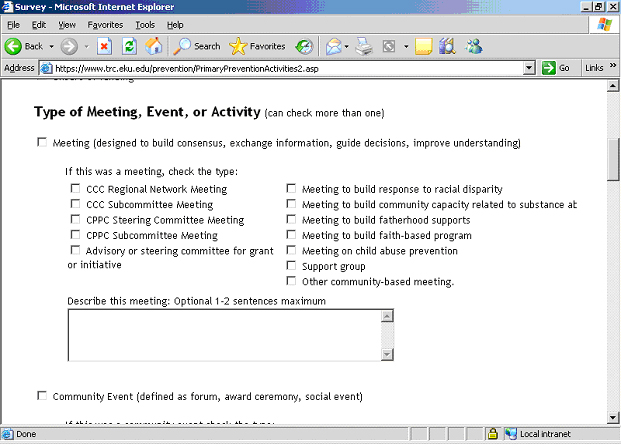
The definitions of each type of event are as follows:
Meeting: Designed to build consensus, exchange information, guide decisions, or improve understanding.Community Event: Forum, award ceremony, social event, etc.
Training / Education Event: Designed to change knowledge, attitudes, and behavior with a structured curriculum or lecture.
Book / Video / Multi-Media Project: A project that includes some type of multi-media (such as reading materials, electronic equipment, library materials, etc.) that will be used by the community in primary prevention activities.
Under each of the above activities, you can check as many boxes as are applicable. You are not required to write in the text boxes, but if you do, only write one or two sentences.
Speaker at this Event, Meeting, or Activity
If there was a formal speaker, check whether the speaker was external or internal to the group who held the event. If it is unclear whether the person was external or internal to the group, use your best judgment. If there was no speaker, check “No speaker.” You do not have to write anything in the text box if there was not a speaker.
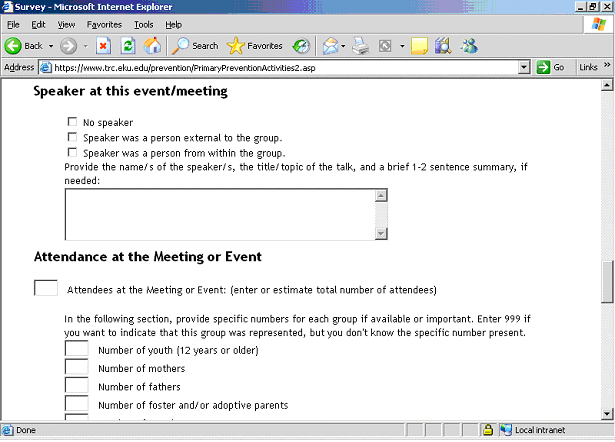
Attendance at the Meeting or Event
You will not always know exactly how many people are present at an event, but even a rough estimate is very helpful in the data collection process. If the composition of the attendees is important and relevant to the event, then fill out the next section detailing how many people from each group were present.
For some activities, such as a public service announcement or resource library, the “Attendees at the Meeting” are actually the people estimated to be affected by the event.
Time (from Minutes to Monthly Report) the Event Lasted
Estimate the closest time that the event lasted and click on it in the scroll box. The options range from minutes to hours to days. For ongoing events, such as movie theater promos, billboards, or resource libraries, click on the “Monthly Report” option and enter these activities once a month.
Press or Media Coverage
If the press or media covered the event, then write the details in the text box so that the information may be looked up later. If there was no press or media coverage, then leave the text box blank.
Perceived Outcomes of the Meeting or Event
This category is called “perceived outcomes” because actual outcomes are not measured. Check all that apply.
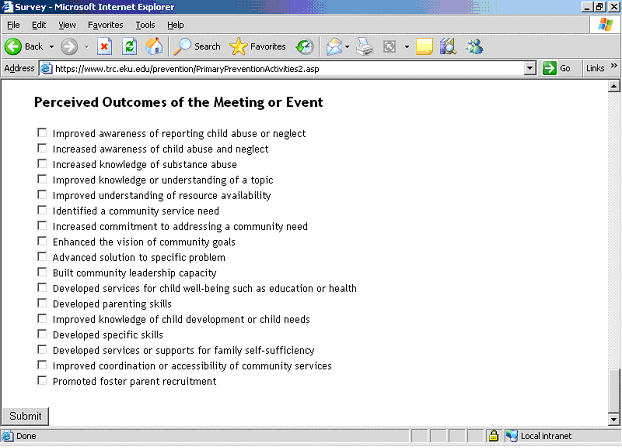
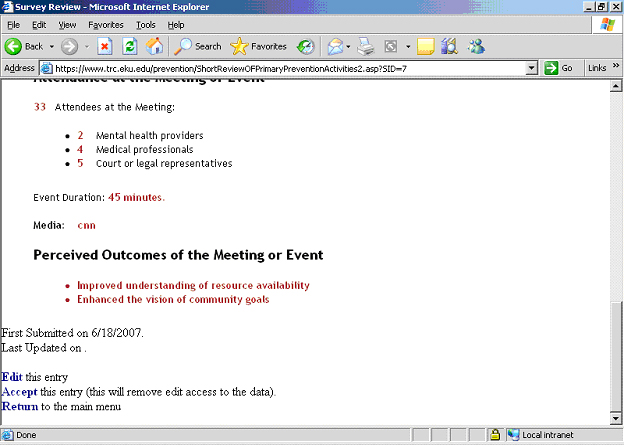
When you have entered all the data for your event, click “Submit” in the bottom left corner. You will be taken to a report page that lists all the information you just entered. You can print this report for your records or dissemination if desired. From here you can edit the event you just entered, accept the entry, or return to the main menu. All three options are available in the bottom left corner of this report page. You are not required to click “Accept” if you think you may want to edit the entry within the next week.
One week. After one week has passed from the date you entered the data, you will no longer be able to edit it, but you will still be able to view it. If you would like to finalize a data entry before one week has passed, you can do so by clicking “Accept” in the bottom left corner of the Review page.
First, you must be logged into the website. On the main menu, in the Tools section, click “View a listing of reported activities”. You will be taken to a page where all the events you have entered using your e-mail address as the user name will be listed. It will look similar to this:
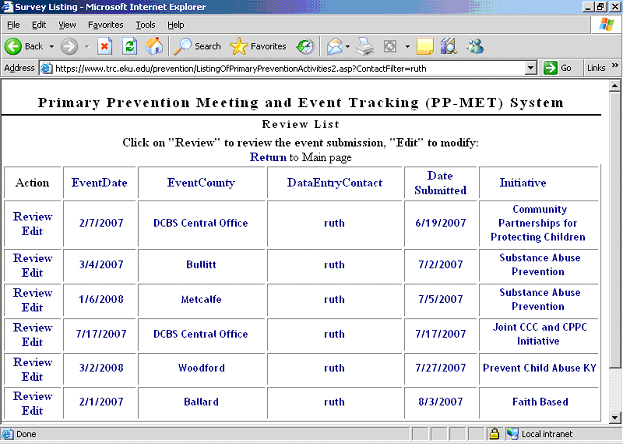
By clicking “Review” in the leftmost column, you can view a report of the activity listed in that row that you can print for your records or dissemination if desired. You can also copy its contents to a word document so that you can add notes for your own records. By clicking “Edit”, you can make changes to the record. Some entries may only have the “Review” option.
A VERY USEFUL TIP: If your list of entered activities is getting lengthy, there are ways to organize and shorten it. One way is to click the blue words in the column headings, such as “Event Date”, “Event County”, etc. This reorders the list in terms of whichever column heading you click. Another way is to click on one of the blue words within a column, such as a specific county name. Then only the entries for that county will appear in your list. If you click on a date, then only activities on or after that date will be visible. To return to the complete list, click a column heading.
Remember, no data collection system can cover every type of data, so sometimes you may need to use your best judgment. However, if you are having trouble entering an event or simply navigating the website in general, then contact Lynne.mason@ky.gov.
Q: What activities do I enter into this website?
A: Enter primary prevention activities that involve the community and that are in some way funded by the DCBS.
Q: How do I enter a recurring event, such as a bimonthly meeting?
A: Enter a recurring event such as a bimonthly meeting or weekly support group each time it occurs.
Q: How do I enter an ongoing event, such as a movie theater promo or billboard?
A: Once a month, enter these types of ongoing activities as a monthly report. If this is the first month of the event, list the “Date of Event” as the day it started. Otherwise, list the first day of the month. A movie theater promo or billboard would be considered a Video/Book/Multi-Media Project. Enter the “Time the event lasted” as “Monthly Report”. Estimate the number of people who were affected during the month and enter that as the “Attendees at the Meeting”. Naturally, your estimate does not have to be exact.
Q: How do I enter equipment, such as videos, TVs, or books?
A: If the equipment you are entering is only used for a short period of time, then enter the “Date of Event” as the date the equipment was first used. Also estimate the amount of time it was used for as the “Time the event lasted”. Estimate the number of people affected by the equipment and enter that number as the “Attendees at the Meeting”. There is a good chance that the equipment you are entering would count as a Video/Book/Multi-Media Project. If the equipment you are entering is used over a longer period of time, then follow the instructions in the previous question.